Post installation considerations
Once the
Issabel Contact Center module has been successfully installed, and a valid license has been registered, some checks need to be performed to ensure that the module is working correctly. Functionality Check of the Operator Panel in Issabel Contact Center
To verify the operation of the Operator
Panel section, you must enter the PBX administration interface through a browser with an account that has administration permissions. Once there, it is necessary to locate the Contact Center module located in the sidebar list: 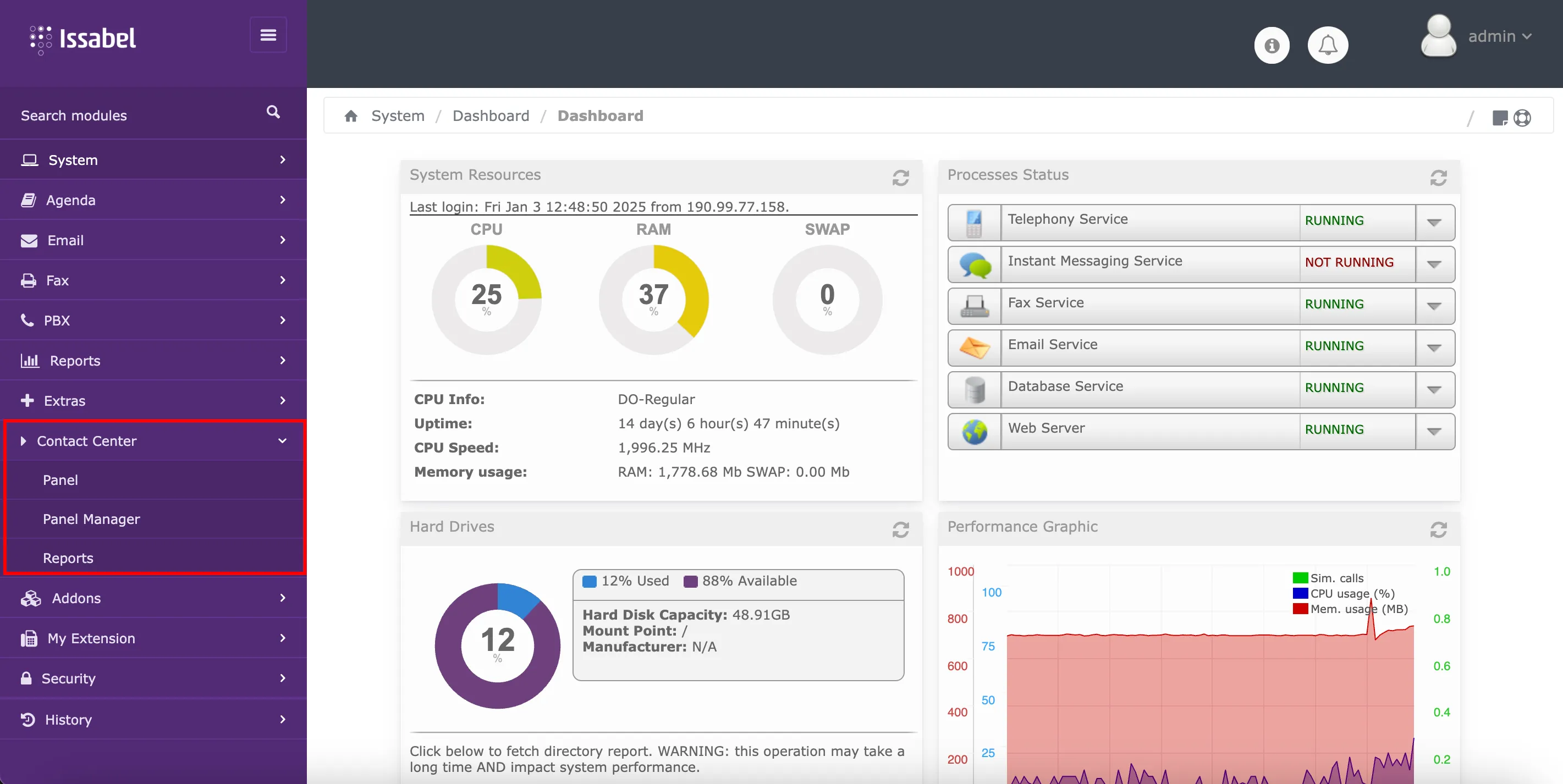
The first section that requires verification is the Operator
Panel, which is located as the first option within the Contact Center submenu. 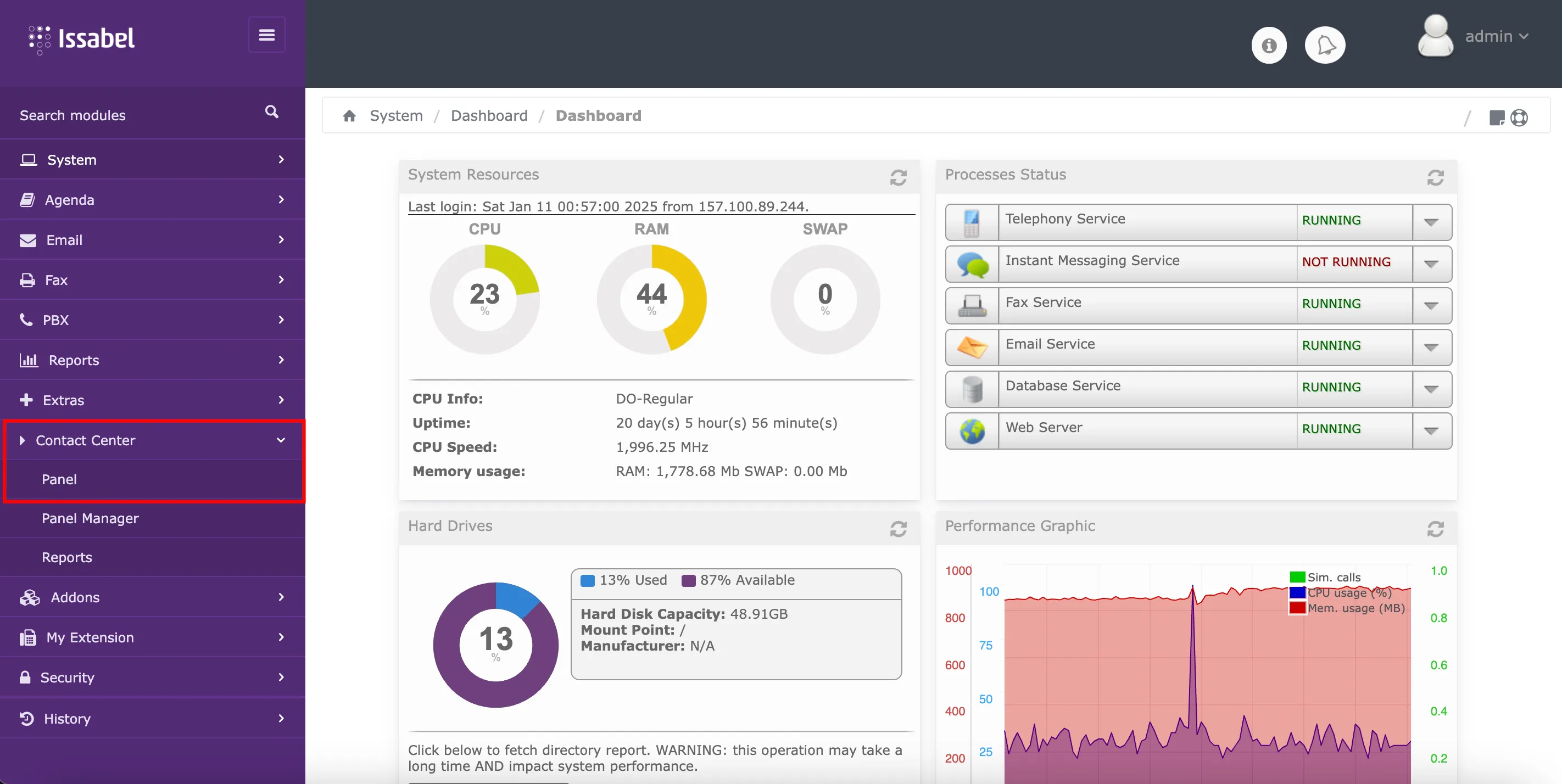
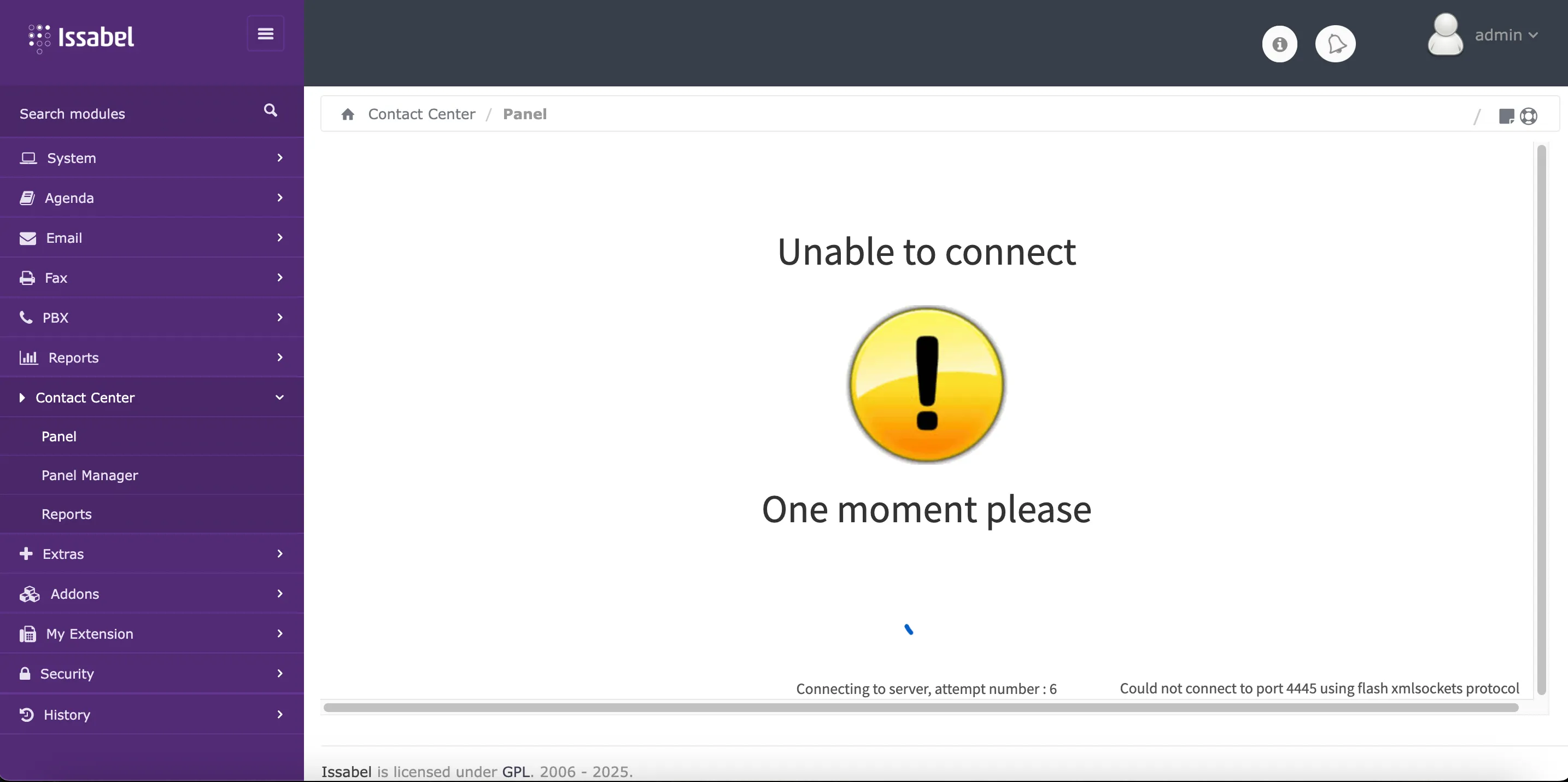
Upon entering this section, the browser will attempt to connect to port 4445 via the server's
xmlsockets protocol. It is also possible to enter the section with the url: PBX_domain/fop2. 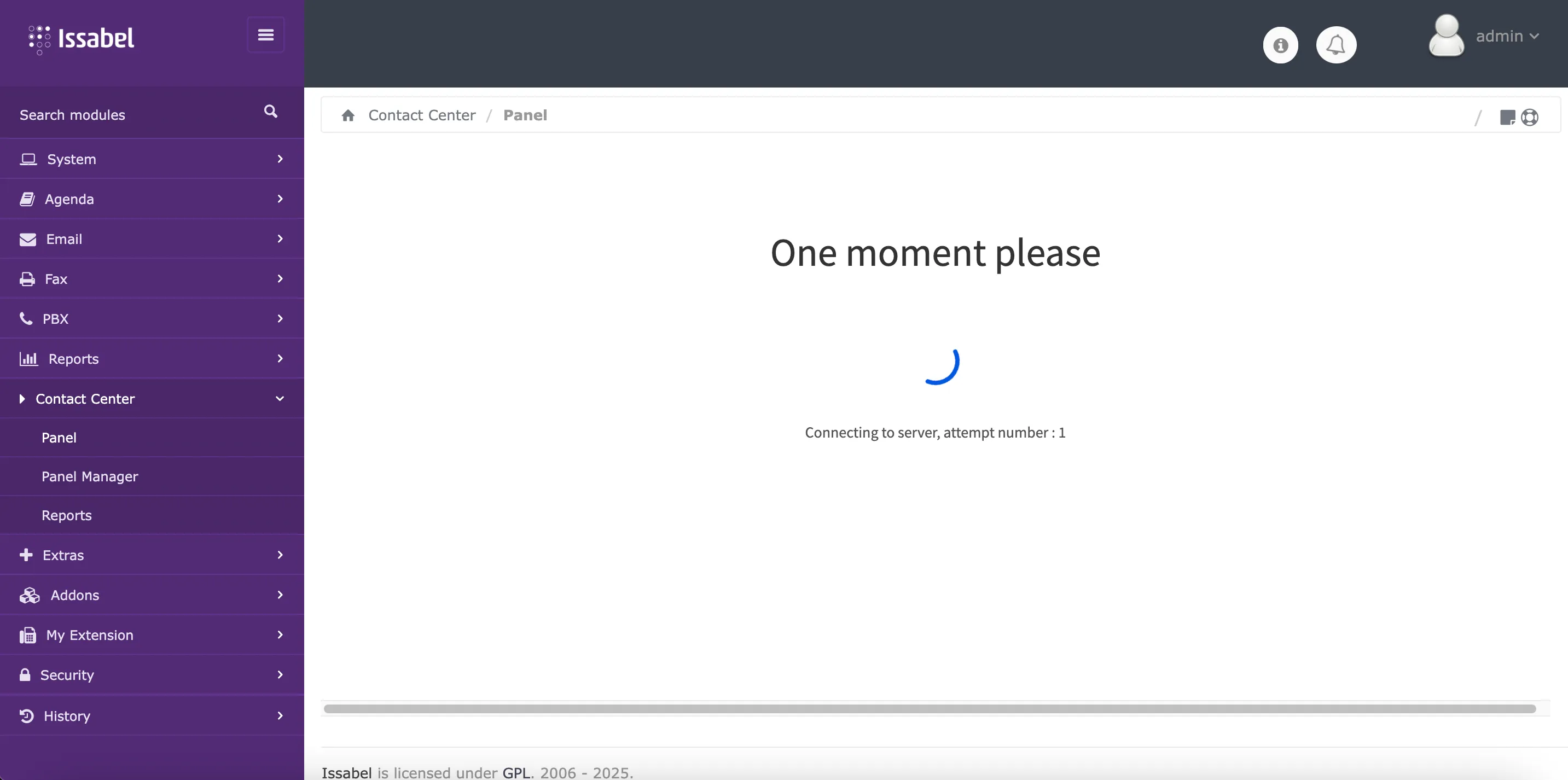
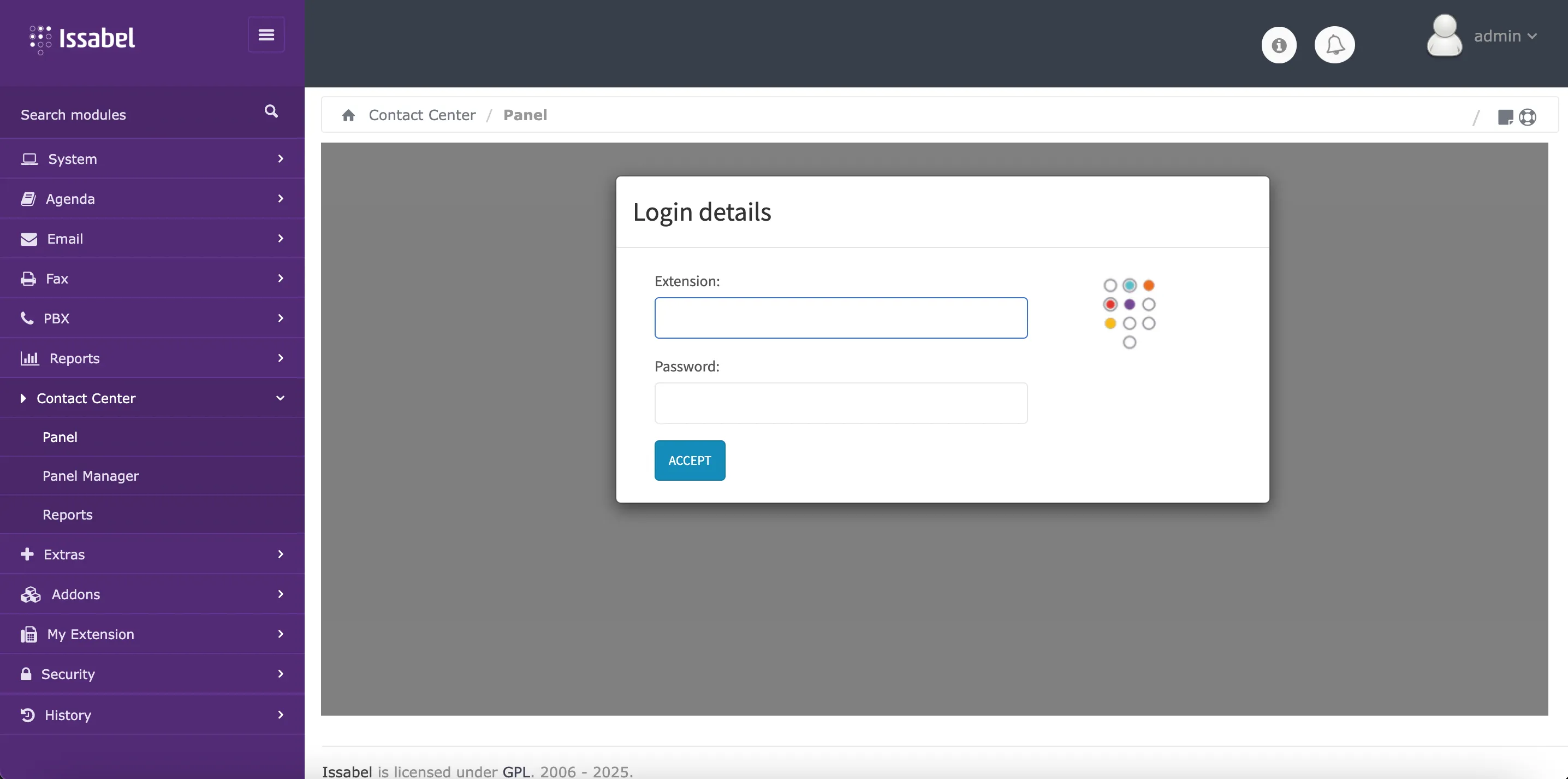
Successful connection of Operator Panel
If the connection is successful, a login form will be displayed to log in as an agent.
Operator Panel Connection Failed
If after several attempts the connection fails, a corresponding message will be displayed on the screen. This can be caused by various reasons. The most common ones are reviewed below.
Security Certificate Path Verification in FOP2 Configuration
The main cause of the
To verify the
Contact Center Module Operator Panel connection failure may be an error in the security certificate path in the FOP2 configuration. As mentioned in another section of this documentation, for the correct installation of the Contact Center module it is necessary to have installed an SSL security certificate on the PBX server. However, despite having installed a valid SSL certificate, the FOP2 configuration may not update the path to that certificate in its configuration and continue trying to establish the connection through the use of the self-signed certificate included in the Issabel installation. To verify the
FOP2 configuration, you need to connect to the PBX server via a command line or terminal, and verify the contents of the FOP2 configuration file with the following command: bash
sudo cat /usr/local/fop2/fop2.cfg Within the content of this configuration file you will find the file paths and key corresponding to the security certificate.
bash
...
; If you access fop2 via https, browsers will try to use wss (Secure
; web sockets) and for that it requires a certificate file and key file,
; the same ones you have in your web server configuration. Be sure to
; specify the correct certificates, the defaults are the ones for a
; regular Centos installation:
;
 ssl_certificate_file=/etc/pki/tls/certs/localhost.crt
 ssl_certificate_key_file=/etc/pki/tls/private/localhost.key
...
The variable that holds the path for the
It is necessary to change the content of these variables with the file paths and key of the
SSL security certificate file is: ssl_certificate_file, and its default path is: /etc/pki/tls/certs/ localhost.crt. The variable that holds the path for the SSL security certificate key is: ssl_certificate_key_file, and its default path is: /etc/pki/tls/private/ localhost.key. These paths point to the self-signed certificate generated during the installation of Issabel. It is necessary to change the content of these variables with the file paths and key of the
SSL security certificate, whose location will depend on the installed certificate provider. To modify the FOP2 configuration file, the following command must be executed: bash
sudo vim /usr/local/fop2/fop2.cfgY modificar:
bash
ssl_certificate_file=/<ssl_certificate_file_path>
ssl_certificate_key_file=/<ssl_certificate_key_path>
Subsequently, it is necessary to restart the FOP2 service:
bash
service fop2 restart Unlike the steps mentioned for the
Network, Firewall, and Fail2ban modules, the FOP2 configuration file is not automatically updated with the file and key paths corresponding to the SSL security certificate during its installation. In most cases, it is necessary to modify the /usr/local/fop2/fop2.cfg file manually. Once all these verification steps have been carried out, when you enter the Operator
Panel section within the Contact Center module again through a browser, the connection should be successful, and the login form should be displayed.
Functionality Check of the Panel Manager in Issabel Contact Center
To verify the operation of the
Panel Manager section, you must enter the PBX administration interface using a browser with an account that has administration permissions. Once there, it is necessary to locate the Contact Center module located in the list in the sidebar, and select the Panel Manager option. 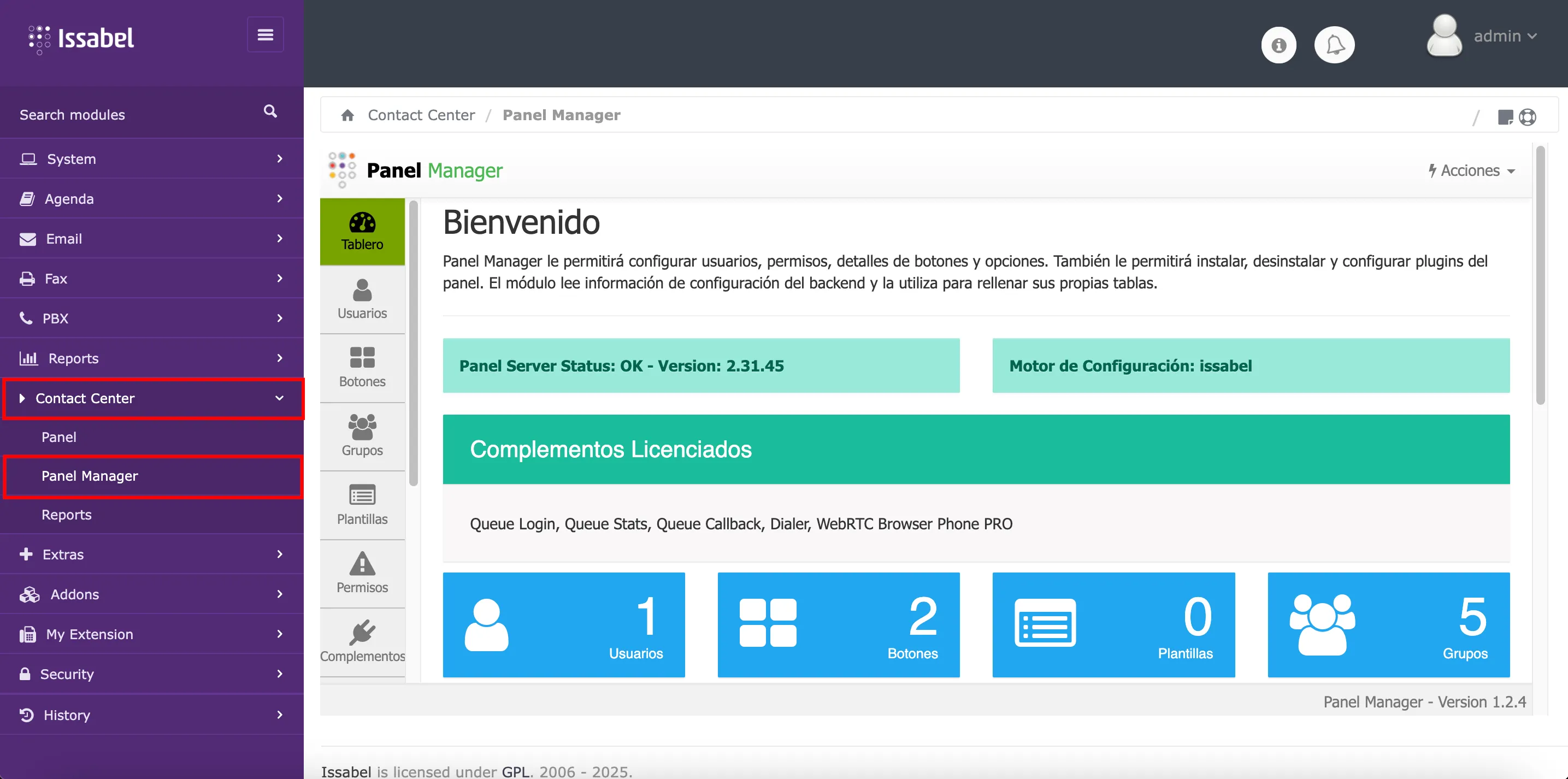
If you see a dashboard similar to the one in the image shown, it means that this section is working correctly. Being an administration section, it generally does not present connection problems. It is also possible to access this section with the url:
PBX_domain/fop2/admin. Functionality Check of the Reports Module in Issabel Contact Center
To verify the operation of the
Reports section, you must enter the PBX administration interface through a browser with an account that has administration permissions. Once there, it is necessary to locate the Contact Center module located in the list in the sidebar, and select the Reports option. 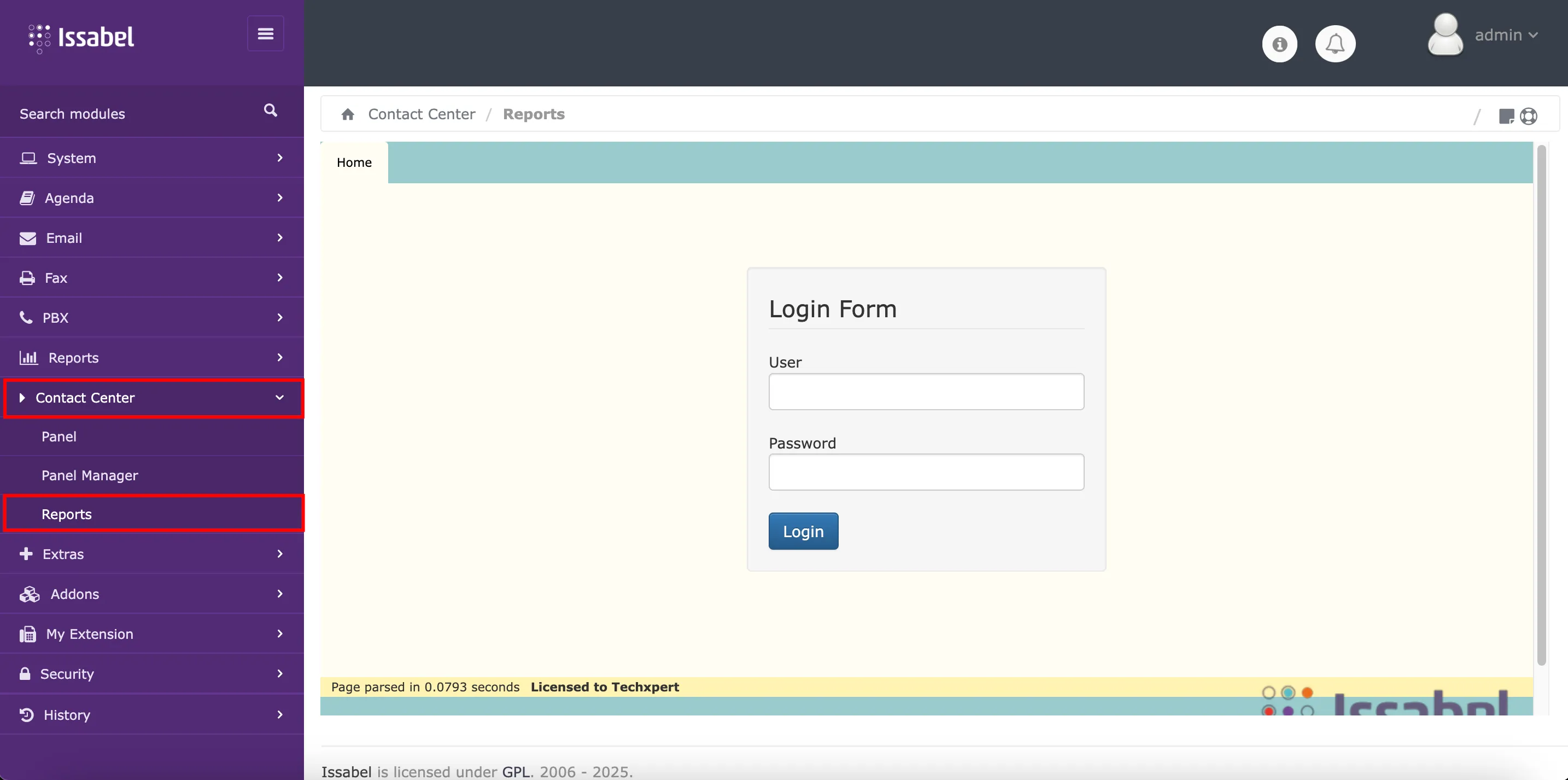
If you see a login form to access the reports, it means that this section is working correctly.
The operation of each of the sections of the
The operation of each of the sections of the
Issabel Contact Center module (Panel, Panel Manager, and Reports), are reviewed in detail in a later section of this documentation. TIP
It is recommended to follow the post-installation steps of the
Contact Center module reviewed on this page to avoid module operation problems. If there is any incorrect or incomplete information, or additional information needs to be generated, please write to isscc@issabel.com